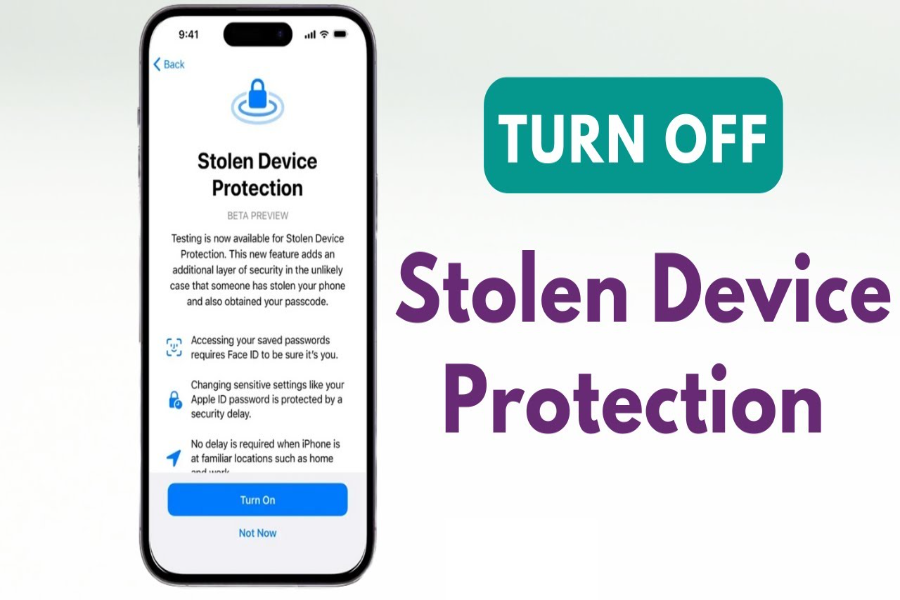
How to turn off stolen device protection is a common question for iPhone users who want to sell, repair, reset, or change settings on their device. This Apple feature helps protect your account and data when your iPhone is away from familiar places.
Before you follow how to turn off stolen device protection steps you should understand one thing. Apple designed this feature to stop thieves who know your passcode. Some sensitive actions require Face ID or Touch ID and may need a one hour security delay.
How To Turn Off Stolen Device Protection On Iphone
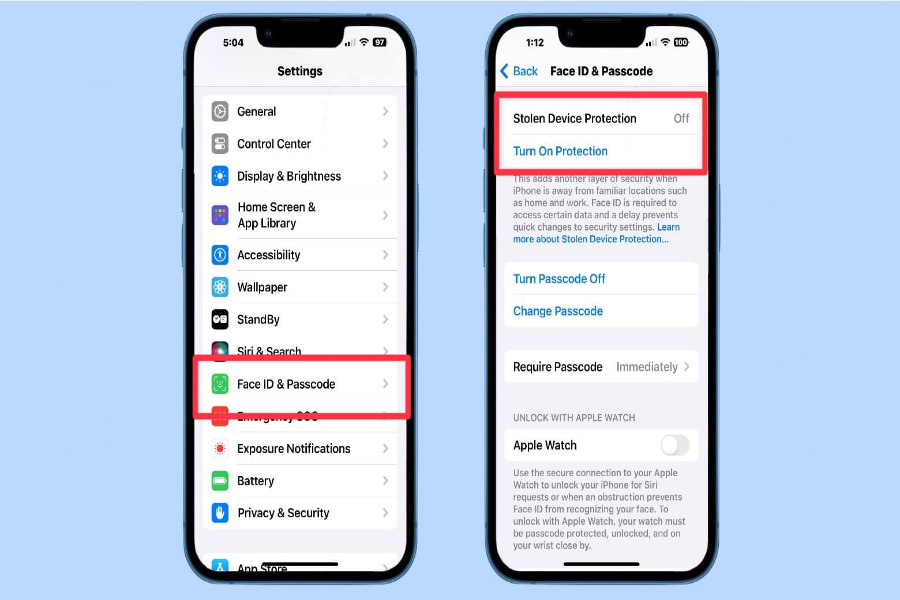
How To Turn Off Stolen Device Protection On Iphone starts in the Settings app. Open Settings then tap Face ID & Passcode or Touch ID & Passcode. Enter your iPhone passcode and scroll to Stolen Device Protection.
After that tap the Stolen Device Protection option and turn it off. Your iPhone may ask for Face ID or Touch ID. If you are away from a familiar location Apple may require a Security Delay before the change is complete.
How to turn off stolen device protection is easier when you are at home or work. These may be treated as familiar locations if Significant Locations is enabled. If your iPhone does not trust the location you may need to wait one hour and authenticate again.
Do not rush this process if you are selling your iPhone. Make sure you turn off protection before handing the phone to someone else. Also sign out of your Apple Account and erase the device only after your data is backed up.
How To Turn Off Stolen Device Protection Without Face Id
How To Turn Off Stolen Device Protection Without Face Id is difficult because Apple uses biometrics for this feature. Apple says there is no passcode fallback for some Stolen Device Protection actions. This means Face ID or Touch ID may be required when protection is active.
If Face ID is not working you should first try to fix it from normal settings. Clean the TrueDepth camera area. Restart the iPhone. Check if Face ID is set up correctly. Also make sure your iPhone is updated.
How to turn off stolen device protection without Face ID may not work if the phone requires biometric approval. This is the security point of the feature. It stops someone from using only a passcode to change important account settings.
If your Face ID hardware is damaged you may need Apple Support or an authorized repair option. Avoid unsafe tricks or third party bypass claims. They can put your data and Apple Account at risk.
How To Turn Stolen Device Protection Off
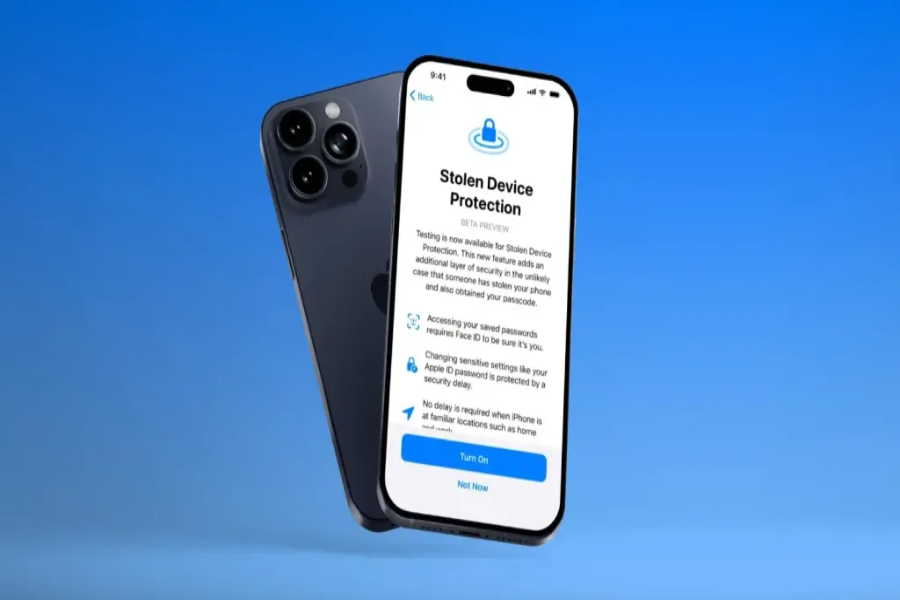
How To Turn Stolen Device Protection Off is simple when your iPhone accepts your identity. Go to Settings then Face ID & Passcode or Touch ID & Passcode. Enter the passcode. Tap Stolen Device Protection and switch it off.
If Security Delay appears you must wait. Apple explains that sensitive changes may require one successful Face ID or Touch ID scan then a one hour wait then another biometric scan. This gives you time to mark a stolen phone as lost.
How to turn off stolen device protection may also depend on the setting mode. Some iPhones allow protection away from familiar locations. Some users may choose to require it always. If it is set to always then the Security Delay may appear more often.
After the delay ends return to the same Stolen Device Protection screen if needed. Then complete the final biometric check and turn it off. Keep the phone nearby during the wait so you can finish the step.
How To Turn Off Stolen Device Protection On Ipad
How To Turn Off Stolen Device Protection On Ipad needs a clear answer. Stolen Device Protection is mainly an iPhone feature. Apple’s guide names it as Stolen Device Protection for iPhone and explains iPhone setup requirements.
So if you search how to turn off stolen device protection on iPad and cannot find the setting that may be why. Your iPad may still have other security features such as Find My Activation Lock passcode Face ID Touch ID and Apple Account protections.
If your iPad is stolen Apple recommends using Find My and iCloud.com/find to mark it as lost or erase it if needed. Apple also says if Find My was not turned on before the device was stolen you cannot mark it as lost or erase it remotely through Find My.
For iPad security check Settings then your Apple Account then Find My. You can also review Face ID & Passcode or Touch ID & Passcode settings. But the exact how to turn off stolen device protection toggle may not appear on iPad.
Why This Feature Can Be Hard To Turn Off
Apple made this feature strict for a reason. If someone steals your phone and knows your passcode they may try to change your Apple Account password remove Find My or erase the device. Stolen Device Protection adds a stronger wall.
That is why how to turn off stolen device protection may not feel like a normal switch. The iPhone may ask for your face or fingerprint instead of just a passcode. It may also make you wait before turning it off.
This can feel annoying when you are the real owner. But it protects your passwords saved cards Apple Account and device settings. It also gives you more time to use Find My if the phone is stolen.
Read more: Logitech G703, How 7 Powerful Gaming Features Help
You should only turn it off when you have a real reason. Common reasons include selling the phone sending it for repair changing account settings or troubleshooting. For daily use leaving it on is safer.
Final Thoughts
How to turn off stolen device protection is usually done from Settings then Face ID & Passcode or Touch ID & Passcode. The switch is simple but Apple may require Face ID Touch ID and a Security Delay.
This feature is meant to protect you from theft. So turn it off only when needed. If Face ID is broken or the phone is away from a familiar place the process may take longer. The safest choice is to follow Apple’s normal settings path and avoid bypass methods.
FAQs About How To Turn Off Stolen Device Protection
Q1. How Do I Turn Off Stolen Device Protection On iPhone?
Go to Settings then Face ID & Passcode or Touch ID & Passcode. Enter your passcode. Tap Stolen Device Protection and turn it off. You may need Face ID or Touch ID and possibly a Security Delay.
Q2. Can I Turn It Off Without Face ID?
Usually no if the protected action requires biometric authentication. Apple says there is no passcode fallback for some Stolen Device Protection actions. If Face ID is not working contact Apple Support or repair the issue.
Q3. Why Is There A One Hour Delay?
The one hour Security Delay helps stop thieves from quickly changing important settings. Apple says some sensitive actions need Face ID or Touch ID then a wait then another biometric check.
Q4. Can I Turn It Off From iCloud?
No. How to turn off stolen device protection is normally done on the iPhone in Settings. If your phone is stolen use Find My to mark it as lost instead of trying to turn this feature off.
Q5. Why Can’t I Find Stolen Device Protection On iPad?
Apple describes Stolen Device Protection as an iPhone feature. If you cannot find it on iPad use other iPad security settings such as Find My passcode Face ID Touch ID and Activation Lock.
Q6. Should I Turn It Off Before Selling My iPhone?
Yes you may need to turn it off before selling or handing over your iPhone. Back up your data first. Then turn it off sign out of your Apple Account and erase the device.
Q7. Is It Safe To Keep Stolen Device Protection On?
Yes it is safer to keep it on for daily use. How to turn off stolen device protection should only matter when you have a real reason such as repair sale or account changes.
